

Your child’s facility uses ReadyRule for digital sign-in and sign-out. Instead of paper sign-in sheets, you scan a QR code at the entrance and verify your identity with a one-time code sent to your phone or email.Documentation Index
Fetch the complete documentation index at: https://readyrule.com/docs/llms.txt
Use this file to discover all available pages before exploring further.
Quick start: your first sign-in
Scan the QR code
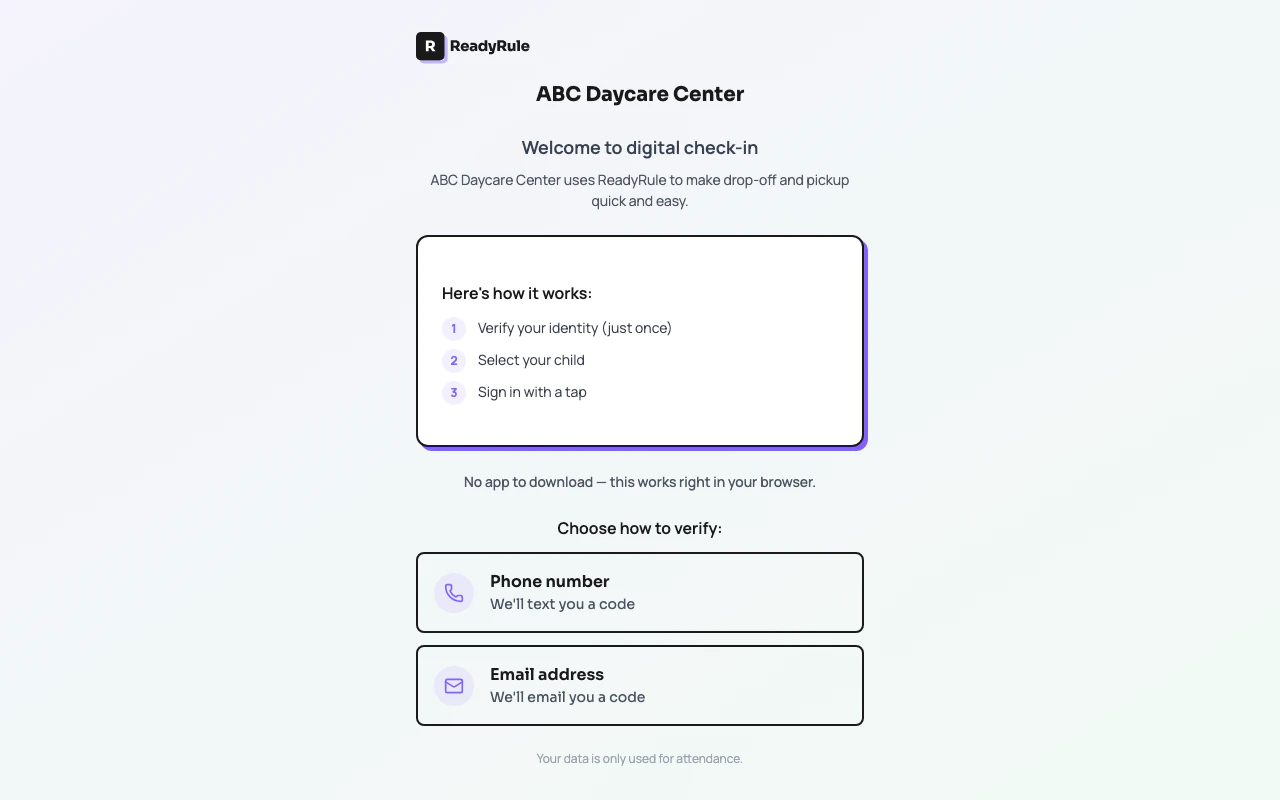
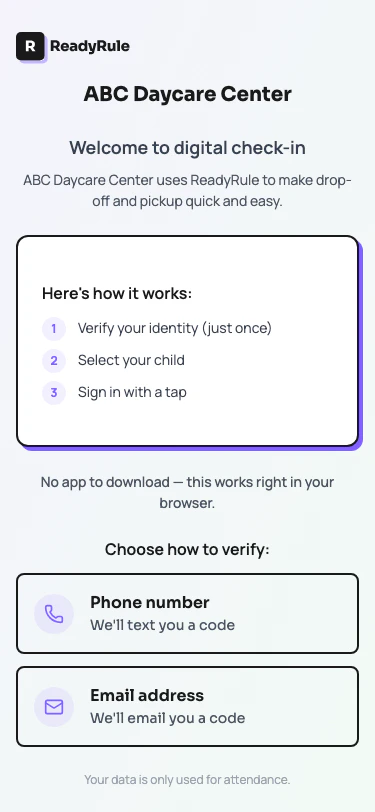
When you arrive at the facility, you will see a QR code posted at the entrance. Scan it with your phone’s camera. You will see a welcome screen with your facility’s name.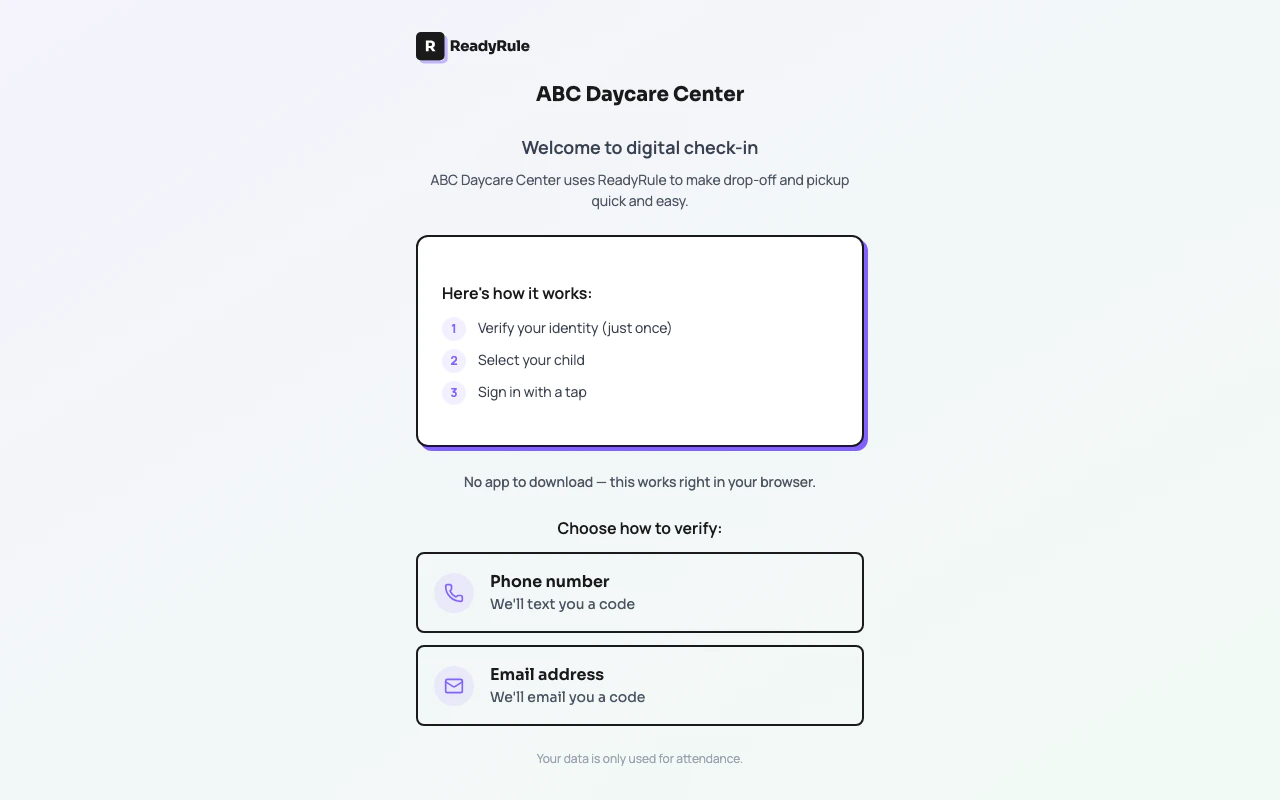
Choose your verification method
You will be asked how you’d like to verify your identity:
- Phone number — “We’ll text you a code”
- Email address — “We’ll email you a code”
Enter your code
Check your phone (text) or email inbox for a 6-digit code. Enter it on screen. You will see a confirmation screen with your children’s names.
Changing your preferences
After signing in, you can customize your experience. Tap the settings gear icon on the sign-in screen after verifying your identity.Sign-in method
Choose whether you verify with Phone or Email each time you sign in. Your choice is remembered for next time.Notifications
Control how the facility reaches you for alerts:| Setting | What it does |
|---|---|
| Late pickup alerts | Get notified if pickup is running late |
| How to receive alerts | Choose: Email only, Text only, or Both |
Quiet hours
Set times when you don’t want to receive notifications:- Start time — When quiet hours begin (e.g., 9:00 PM)
- End time — When quiet hours end (e.g., 7:00 AM)
Save your preferences
Tap the Save preferences button at the bottom. You will see a confirmation that your settings were saved.Troubleshooting
I'm getting texts but I don't want them
I'm getting texts but I don't want them
Reply STOP to any ReadyRule text message, or go to your Preferences and turn off “Text message” under notification delivery.
I changed my phone number — how do I update it?
I changed my phone number — how do I update it?
Contact your facility directly. Staff can update your phone number in the system. Your next sign-in will use the new number.
My session expired and I have to enter a code again
My session expired and I have to enter a code again
Sessions last 30 days for security. Just enter a new code — it takes 10 seconds.
I have children at multiple facilities
I have children at multiple facilities
Each facility has its own QR code and sign-in. Your preferences are saved separately per facility.
Authorization expired — what does that mean?
Authorization expired — what does that mean?
I don't see the welcome screen when scanning
I don't see the welcome screen when scanning
Make sure you are scanning the QR code for your specific facility. If you have signed in before, you will go straight to the sign-in screen instead.
I didn't receive a code
I didn't receive a code
Check your spam folder (for email) or wait 30 seconds and request a new code. Make sure the phone number or email on file with the facility is correct.
Quick reference
| Task | How | Time |
|---|---|---|
| Sign in your child | Scan QR > Enter code > Tap child’s name | 30 sec |
| Change sign-in method | Preferences > Sign-In Method > Phone or Email | 15 sec |
| Set quiet hours | Preferences > Quiet Hours > Set times > Save | 30 sec |
| Turn off text alerts | Preferences > Notifications > Change delivery method | 15 sec |
| Sign out your child | Scan QR > Tap child’s name > Confirm sign-out | 20 sec |
Privacy
- Your phone number and email are only used for sign-in codes and facility alerts
- No app download or account creation required
- Your data is only shared with your child’s facility
- You can opt out of text messages at any time by replying STOP