

ReadyRule keeps a log of every time you clock in, clock out, or take a break. You can view your attendance history for any past date to check your hours or confirm your schedule.Documentation Index
Fetch the complete documentation index at: https://readyrule.com/docs/llms.txt
Use this file to discover all available pages before exploring further.
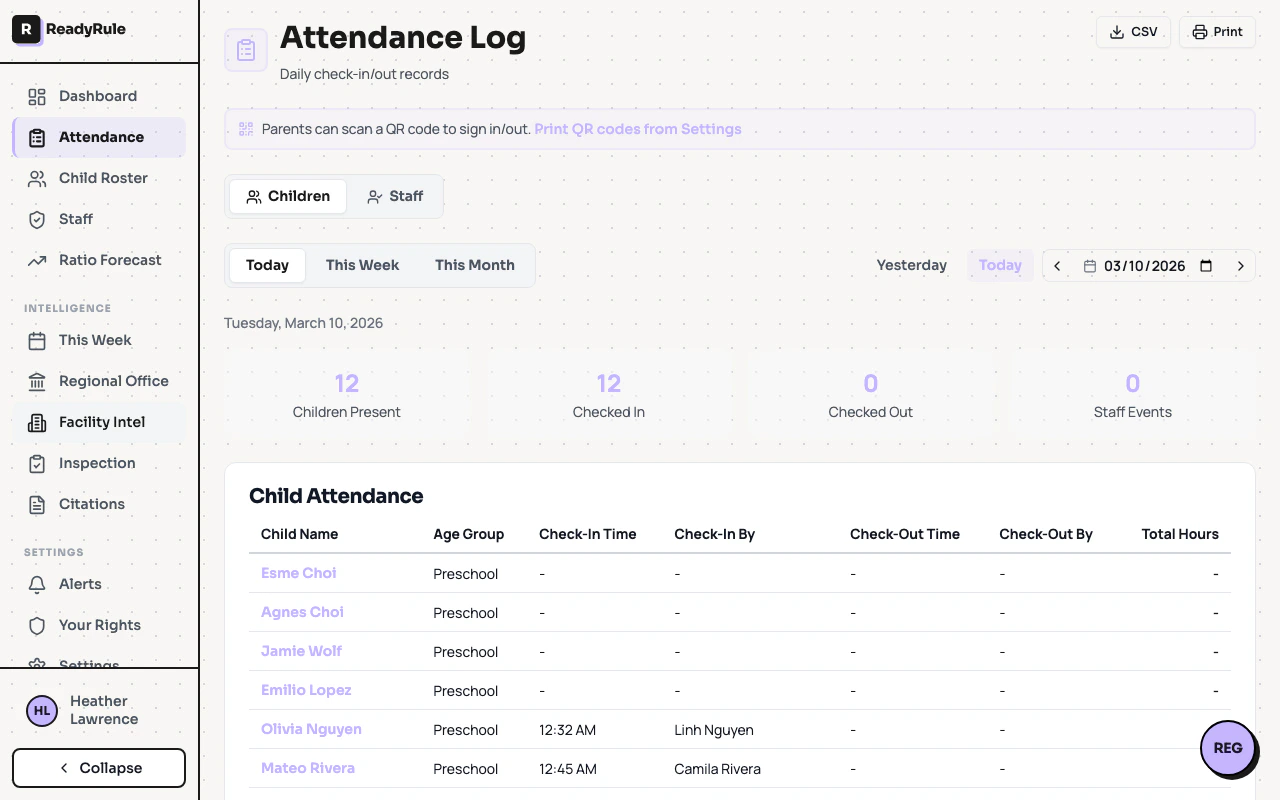
Quick start: check today’s hours
View a past date
Use the date picker
At the top of the Staff tab, tap the date picker and select the date you want to review. If you didn’t work that day, your entry shows “No events.”
Understanding your events
| What you see | What it means |
|---|---|
| Signed In | You clocked in at the facility |
| Signed Out | You clocked out for the day |
| Started Break | Your break began |
| Ended Break | You returned from break |
| Net hours | Total hours minus break time |
| Hours (in progress) | You haven’t clocked out yet — updates live |
Troubleshooting
I don't see my name in the list
I don't see my name in the list
Your admin may not have added you as active staff yet. Let them know.
My hours look wrong
My hours look wrong
Check if a break was started but never ended, or if you forgot to clock out. Ask your admin to correct the record if needed — they can edit attendance entries.
Can I see last week's hours?
Can I see last week's hours?
Yes. Use the date picker to go to any past date. Your records are kept for 3 years.
I don't see the Staff tab
I don't see the Staff tab
Make sure you are on the Attendance Log page (not Attendance Reports). Look for the tabs at the top of the page.
Quick reference
| Task | How | Time |
|---|---|---|
| Check today’s hours | Attendance Log > Staff tab > find your name | 15 sec |
| Check a past date | Attendance Log > Staff tab > date picker > select date | 20 sec |
| See if you took breaks | Look for “Started Break” / “Ended Break” entries | 10 sec |
| Confirm net hours | Look at the “Net hours” line under your name | 5 sec |