

When your administrator invites you to ReadyRule, you go through a short onboarding flow to set up your profile and enter your compliance records. The process takes about 5 minutes.Documentation Index
Fetch the complete documentation index at: https://readyrule.com/docs/llms.txt
Use this file to discover all available pages before exploring further.
Quick start
Accept the invitation
Click the invite link from your email. Create your account or log in with your existing credentials.
Welcome screen
You see a welcome message with your facility’s name and your assigned role. Review the information and continue.
Background checks
Enter the status of your Criminal Record Clearance and Child Abuse Index (CACI) checks. If you have not completed these yet, you can skip and update later.
Onboarding steps
The onboarding flow has three steps, tracked by a progress indicator at the top:| Step | What you do |
|---|---|
| Welcome | Confirm your facility and role |
| Background Check | Enter your clearance statuses |
| Certifications | Add CPR, First Aid, Mandated Reporter, and other certs |
After onboarding
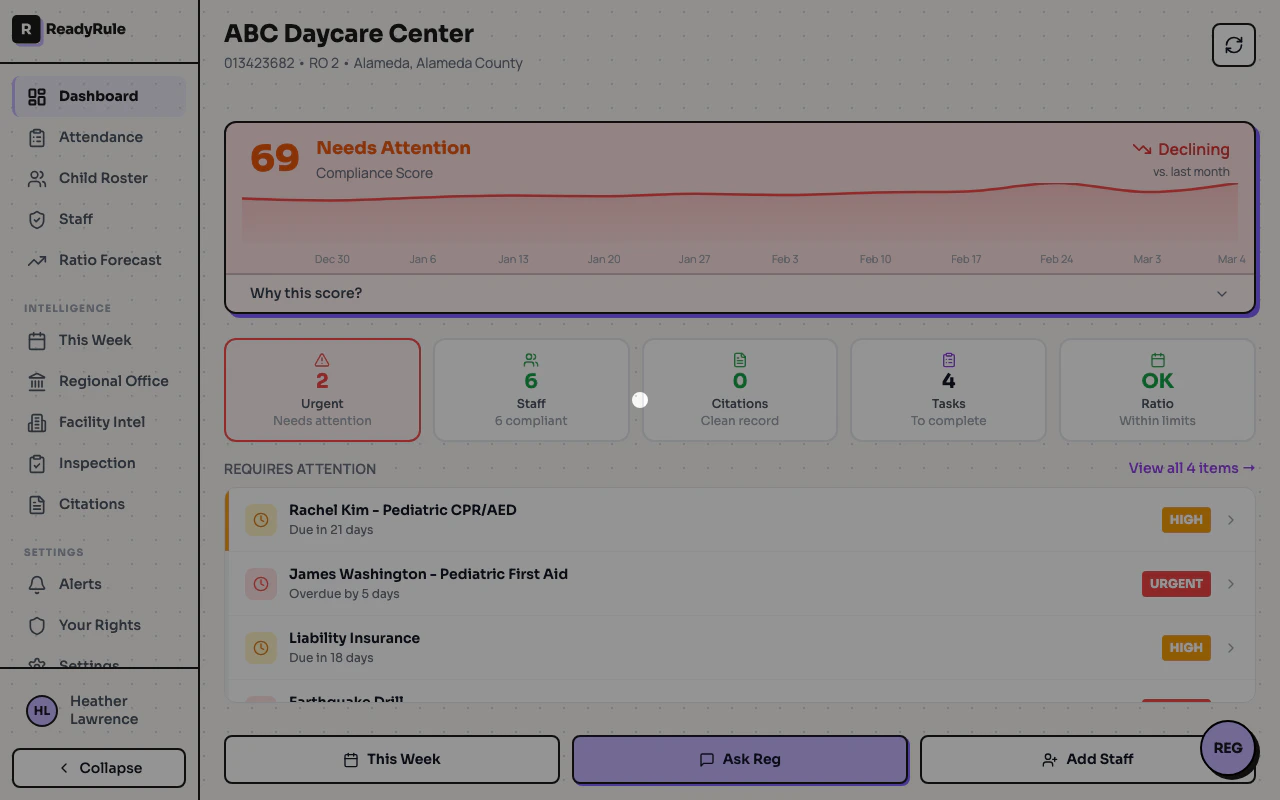
Once you complete onboarding, you land on the main app where you can:- Check in and out using the kiosk or QR code
- View your profile to update certifications and preferences
- Use AI chat to ask compliance questions
- Browse violations relevant to your facility
Troubleshooting
Invite link expired
Invite link expired
Ask your administrator to resend the invitation. Invite links have an expiration window for security.
Wrong facility shown
Wrong facility shown
If the welcome screen shows a different facility, contact your administrator. They may need to update your staff record.