

Sometimes a sign-in or sign-out gets missed — a parent forgets to scan, or a staff member skips the kiosk. Attendance backfill lets you correct these gaps so your records stay accurate for compliance.Documentation Index
Fetch the complete documentation index at: https://readyrule.com/docs/llms.txt
Use this file to discover all available pages before exploring further.
Quick start
Navigate to the correct date
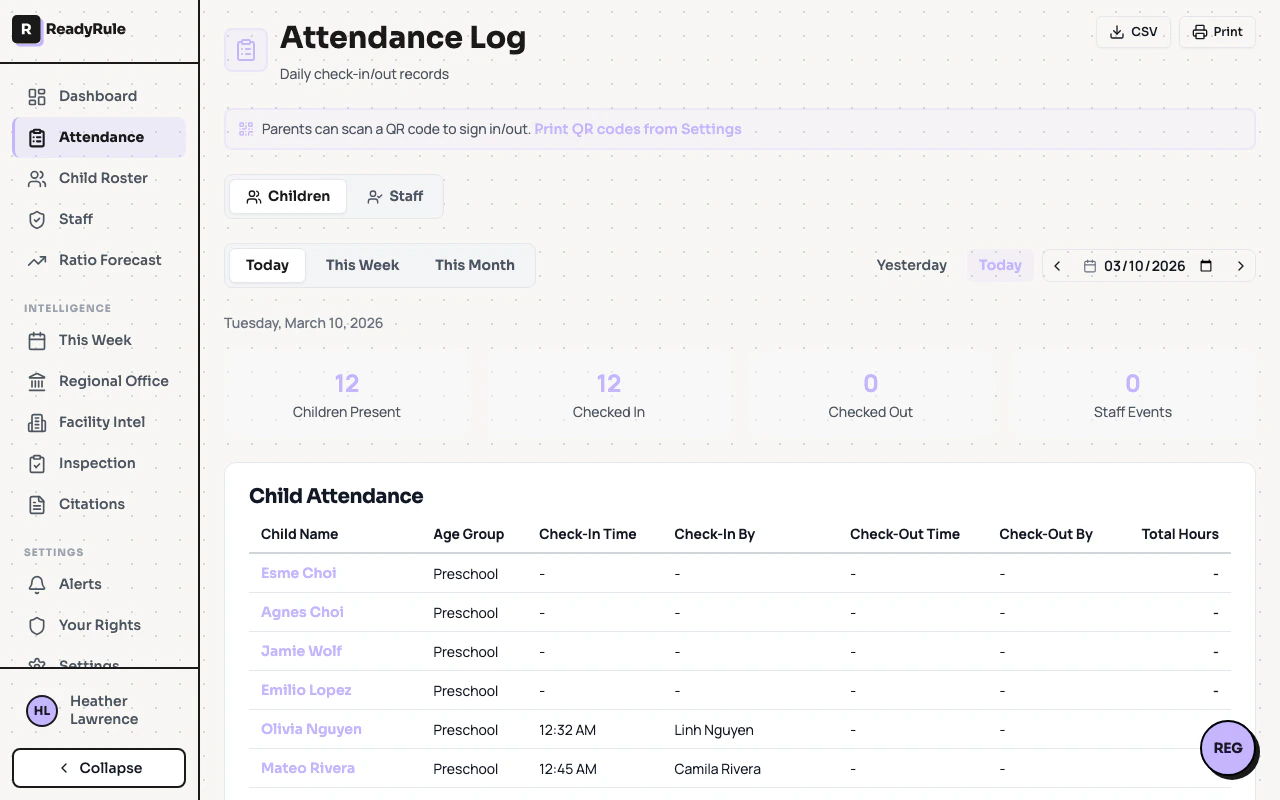
Use the date picker or arrow buttons to go to the day that needs correction. You can also click Yesterday for quick access.
How it works
The attendance log shows daily records for both children and staff, switchable via the Children and Staff tabs at the top. You can view records in three modes:| View | Shows |
|---|---|
| Today | Current day with live auto-refresh every 60 seconds |
| This Week | Monday through Friday of the selected week |
| This Month | Full month view |
Exporting records
After correcting records, you can export the day’s attendance as a CSV file using the CSV button. Use the Print button to generate a printable version for your physical records.Troubleshooting
Cannot find a child in the attendance log
Cannot find a child in the attendance log
The attendance log only shows children who are on your active roster. If a child is missing, check the Child Roster page to confirm their enrollment status is active.
Export button is disabled
Export button is disabled