

By default, parents access your sign-in page using your facility number (e.g.,Documentation Index
Fetch the complete documentation index at: https://readyrule.com/docs/llms.txt
Use this file to discover all available pages before exploring further.
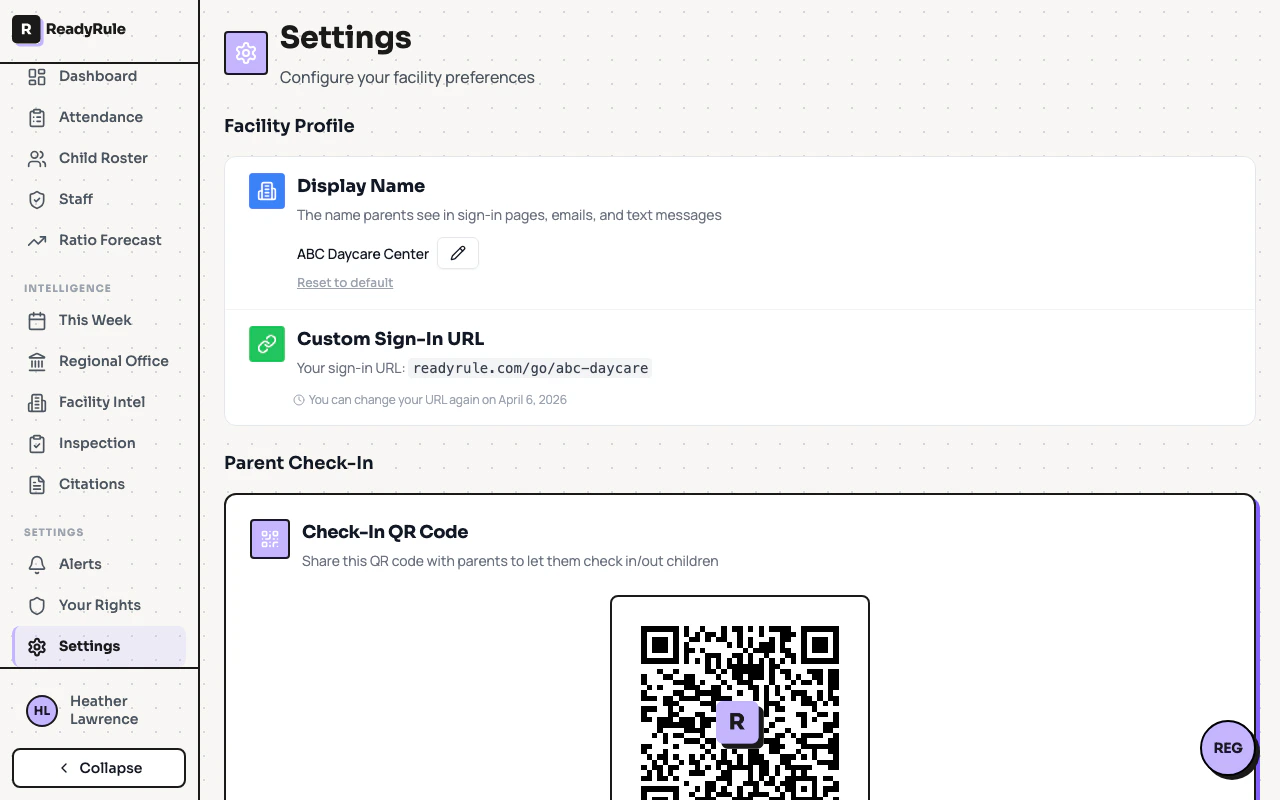
readyrule.com/go/013423682). A custom sign-in URL replaces that number with a human-readable name like readyrule.com/go/sunshine-daycare.
Quick start
Enter your preferred slug
Type a short, memorable name for your facility. The field auto-formats to lowercase and strips invalid characters. A live preview shows the full URL.
URL format rules
Your custom slug must follow these rules:- 4 to 32 characters long
- Lowercase letters, numbers, and hyphens only
- No spaces or special characters
Changing your URL
You can change your custom URL, but there is a 30-day cooldown between changes. The settings page shows when you can next update the slug. A confirmation dialog appears before overwriting an existing slug. Both the old numeric URL and the new custom URL work for parent sign-in. Updating the slug does not break existing QR codes that use your facility number.Troubleshooting
Slug is already taken
Slug is already taken
Another facility has claimed that name. Try adding a location identifier, like
sunshine-daycare-oakland.Cannot change URL yet
Cannot change URL yet
The 30-day cooldown is active. The settings page shows the exact date when you can make another change.