

Expected absence tracking lets you record planned absences (vacations, sick days, appointments) ahead of time. This gives you accurate “expected attendance” numbers on your dashboard so you know who should arrive today versus who is planned to be out.Documentation Index
Fetch the complete documentation index at: https://readyrule.com/docs/llms.txt
Use this file to discover all available pages before exploring further.
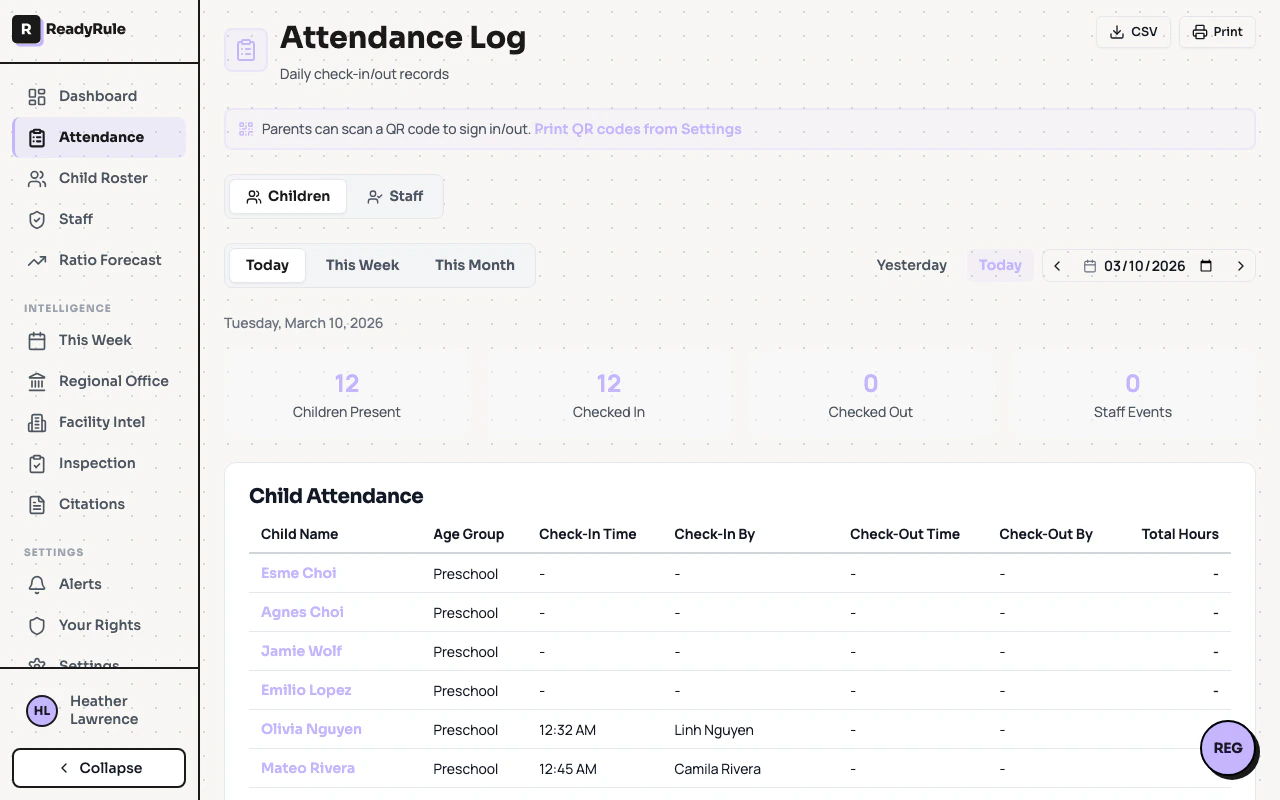
Quick start: mark a child absent
You can mark a child absent from two places.Option A: from Child Roster (recommended)
Find the child
Use the search bar or age group filters (Infant, Toddler, Preschool, School Age) to find the child.
Fill in absence details
- Start Date: First day of the absence
- End Date: Last day (same day for single-day absences)
- Reason: Sick, Vacation, Family Emergency, Appointment, or Other
- Notes (optional): Add details if helpful (max 500 characters)
Option B: from the Attendance Dashboard
- Go to Attendance Dashboard
- Find the absence tracking widget
- Click Mark Absent
- Select the child, date range, and reason
- Click Mark Absent to confirm
Viewing the dashboard
After marking absences, your Attendance Dashboard shows updated numbers:- Signed In: Children currently at the facility
- Expected: Children who should arrive but haven’t yet (enrolled minus absent minus signed in)
- On Leave: Children with planned absences today
Reason badge colors
| Reason | Color |
|---|---|
| Sick | Red |
| Vacation | Blue |
| Family Emergency | Orange |
| Appointment | Purple |
| Other | Gray |
Canceling an absence
If plans change and the child will attend after all:- Go to the child’s profile
- Find the Active Absences section
- Click the absence you want to cancel
- Click Cancel Absence
Multi-day absences
For vacations or extended illness, use the date range. For example, a family vacation from January 27-31 would use January 27 as the start date and January 31 as the end date. The child will be marked as absent for all 5 days, and the dashboard adjusts automatically on each day.Troubleshooting
Can I mark a child absent for today?
Can I mark a child absent for today?
Yes. If the child won’t be coming today and you want accurate dashboard numbers, mark them absent with today as both the start and end date.
What happens if I mark an absence that overlaps with an existing one?
What happens if I mark an absence that overlaps with an existing one?
The system prevents overlapping absences. You will see an error: “This child already has an absence recorded for some of these dates.” Cancel the existing absence first, then create a new one.
Who can mark children absent?
Who can mark children absent?
All staff members with access to the Child Roster can mark absences, including directors, teachers, and assistants with roster access.
Are absences visible to parents?
Are absences visible to parents?
Currently, absences are only visible to facility staff on the dashboard. Parents do not see planned absences in their sign-in view.
What if I make a mistake?
What if I make a mistake?
- Wrong dates: Cancel the absence and create a new one
- Wrong reason: Cancel and recreate (or leave it — the reason is mainly for your reference)
- Wrong child: Cancel the incorrect absence
The dashboard numbers seem wrong
The dashboard numbers seem wrong
The dashboard refreshes automatically every 60 seconds. You can also click Refresh to update immediately. If there is a problem loading absence data, click Try again to reload.
Tips
- Mark vacations early: As soon as a parent tells you about a planned vacation, record it.
- Use “Sick” for same-day call-outs: When a parent calls to say their child is sick, mark them absent for at least today.
- Check the dashboard first thing: The “Expected” count tells you exactly how many children should arrive.
- Use notes for details: Notes help you and other staff remember why a child is out.