

ReadyRule keeps attendance records for children and staff for 3 years, meeting California Title 22 requirements. You can export these records as CSV files for inspections and view daily staff attendance history in the Attendance Log.Documentation Index
Fetch the complete documentation index at: https://readyrule.com/docs/llms.txt
Use this file to discover all available pages before exploring further.
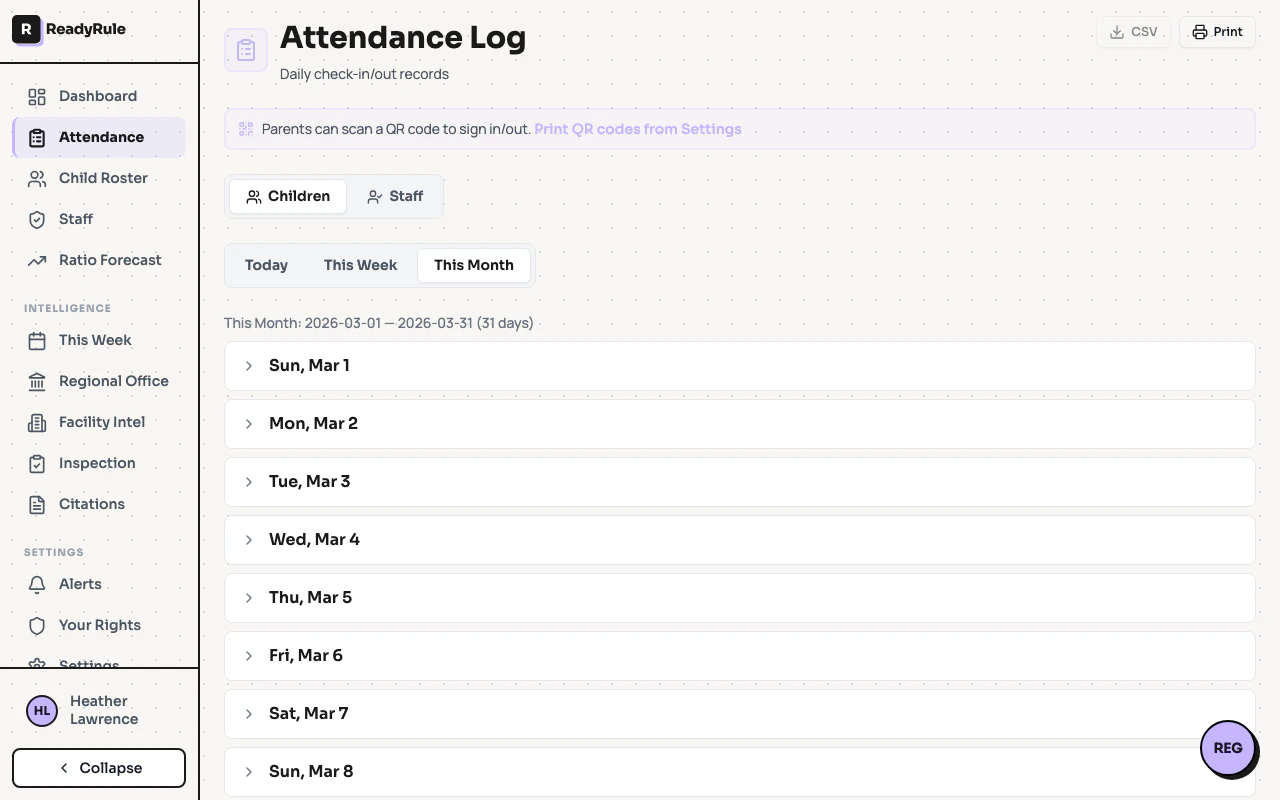
Export records for an inspection
Go to Attendance Reports
Navigate to Attendance Reports from the sidebar. You will see a page with multiple report tabs across the top.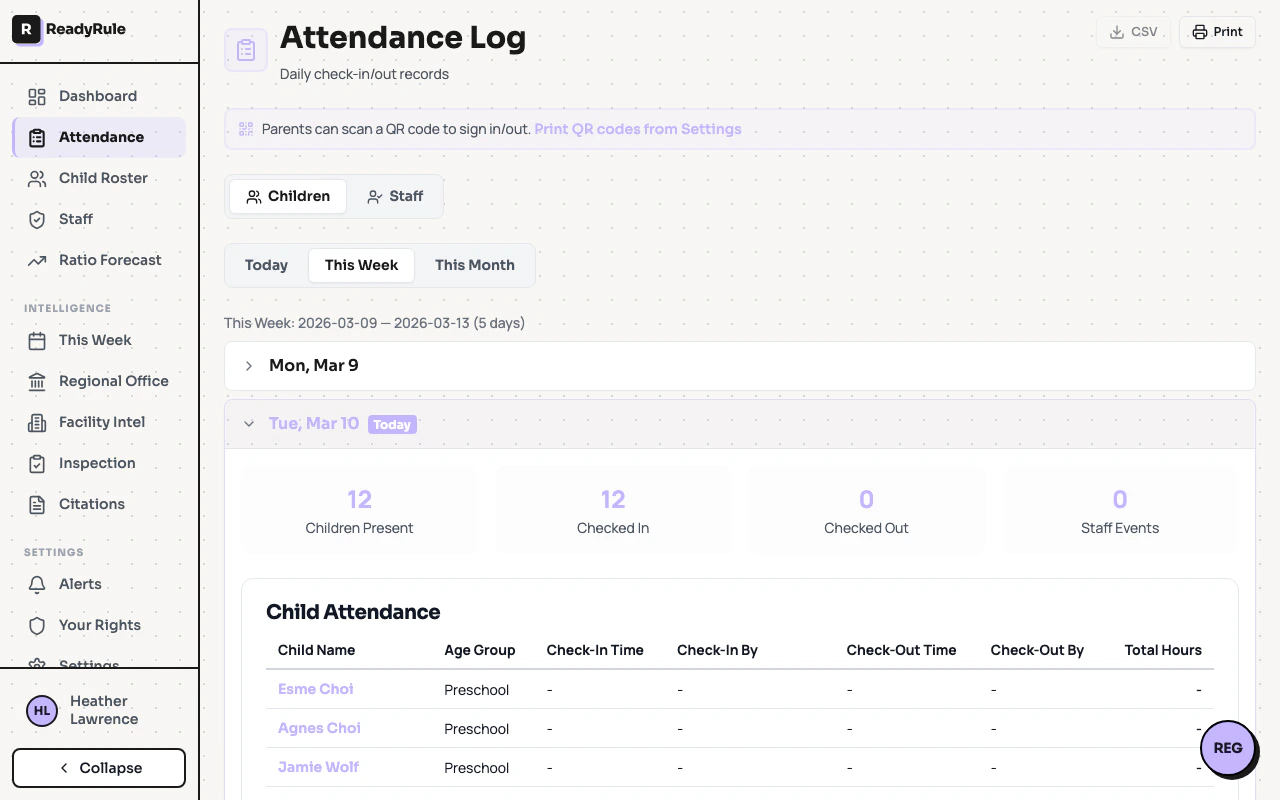
Click the Export Records tab
Click Export Records (the last tab in the row). You will see a date range picker, record type selector, and a Download button.
Choose the record type
| Option | What’s included |
|---|---|
| Child Attendance | Date, child name, age group, sign-in/out times, duration, adult who signed |
| Staff Attendance | Date, staff name, role, sign-in/out times, total break hours, net hours worked |
| Both | Downloads two separate CSV files (one for children, one for staff) |
View staff attendance history
Click the Staff tab
At the top, you will see two tabs: Children and Staff. Click Staff. You will see a list of staff members with their events for today, grouped by person.
Browse a staff member's day
Each staff member shows their events in order:The summary line at the top shows quick counts: “3 staff - 1 on site - 1 on break - 1 signed out”
Understanding the data
How net hours are calculated
Net hours = total time on site minus break time.| Staff status | Hours shown |
|---|---|
| Signed out for the day | Final net hours (exact) |
| Still on site | Estimated hours with “(in progress)” — updates live |
| On break | Total time on site so far (break duration not yet subtracted) |
Event types
| Icon | Action | Meaning |
|---|---|---|
| Green check | Signed In | Staff arrived at the facility |
| Red door | Signed Out | Staff left for the day |
| Yellow coffee | Started Break | Staff began a break |
| Blue play | Ended Break | Staff returned from break |
Data retention policy
ReadyRule stores attendance records for 3 years from the date of the event, per California Title 22 requirements.- Records are available for export at any time within this window
- If your facility cancels its subscription, you have 90 days to export your data
- Data is backed up daily on our servers
Troubleshooting
The export is taking a long time
The export is taking a long time
Large date ranges (close to 1 year) with many children and staff can take a few seconds. Wait for the download to complete. If it fails, try a shorter date range.
The CSV looks wrong when I open it in Excel
The CSV looks wrong when I open it in Excel
CSV files use commas as delimiters. If Excel doesn’t parse it correctly:
- Open Excel
- Go to Data > From Text/CSV
- Select the downloaded file
- Choose “Comma” as the delimiter
I don't see the Export Records tab
I don't see the Export Records tab
Only admins and owners can access the export feature. If you are a staff member, ask your admin.
A staff member's hours look wrong
A staff member's hours look wrong
Check their event history in Attendance Log > Staff tab for that date. Common causes:
- They forgot to clock out (shows “in progress” indefinitely)
- A break was started but never ended
- Events were manually edited — check the audit trail
Can I export PDF reports?
Can I export PDF reports?
PDF export is planned but not yet available. Currently, CSV is the supported format.
Quick reference
| Task | Where to go | Time |
|---|---|---|
| Export child attendance | Attendance Reports > Export Records > Child > Download | 1 min |
| Export staff attendance | Attendance Reports > Export Records > Staff > Download | 1 min |
| Export both | Attendance Reports > Export Records > Both > Download | 1 min |
| View today’s staff log | Attendance Log > Staff tab | 30 sec |
| View past staff log | Attendance Log > Staff tab > date picker | 30 sec |