

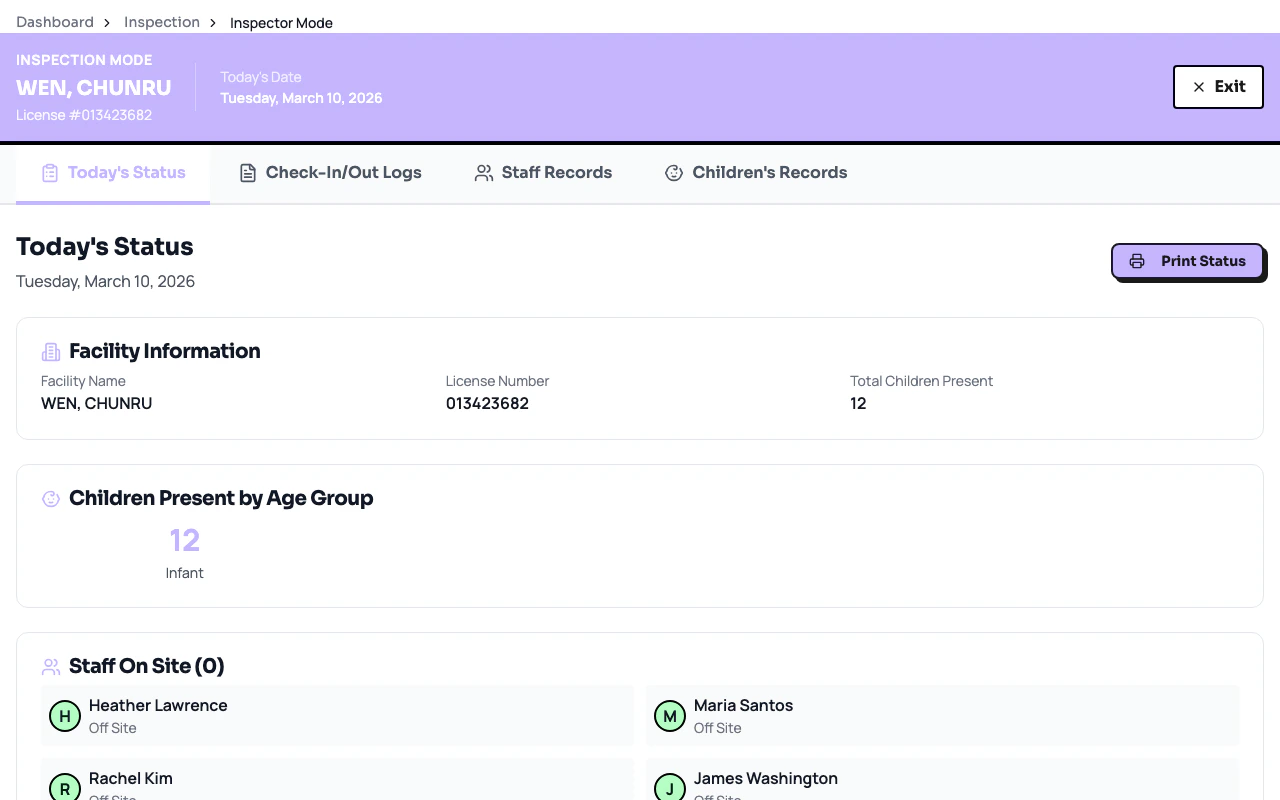
Inspector mode provides a clean, full-screen interface for presenting your facility records during a licensing visit. It removes navigation chrome and organizes records into tabs that match what an LPA typically reviews.Documentation Index
Fetch the complete documentation index at: https://readyrule.com/docs/llms.txt
Use this file to discover all available pages before exploring further.
Quick start
Open Inspector mode
Go to Inspection in the sidebar, then select Inspector Mode. You can also access it from the inspection readiness dashboard.
Present records by tab
Use the four tabs to show the inspector the relevant records:
- Today’s Status — current compliance snapshot
- Sign-In/Out Logs — attendance records
- Staff Records — certifications and background checks
- Children’s Records — enrolled children and authorized adults
How it works
Inspector mode is a read-only view designed for presentation. The interface includes:- Facility banner at the top with your facility name and license number
- Horizontal tab navigation that works on both desktop and mobile
- No sidebar or app navigation so the inspector sees only relevant records
- Mobile-responsive layout for tablet or phone use during walkthroughs
Using it for preparation
You do not have to wait for an actual inspection. Use inspector mode regularly to:- Verify all staff records are complete and current
- Confirm attendance logs are accurate
- Check that children’s records have up-to-date authorized adults
- Practice presenting information confidently
Troubleshooting
Records appear incomplete in inspector mode
Records appear incomplete in inspector mode
Inspector mode displays what is currently in the system. If records are missing, update them in the Staff or Child Roster pages before entering inspector mode.