

Compliance Chat is your AI-powered assistant for California childcare regulations. It can answer questions about Title 22 requirements, help you prepare for licensing inspections, draft Plans of Correction for citations, explain staff-to-child ratio requirements, and guide you through fire drill and safety documentation.Documentation Index
Fetch the complete documentation index at: https://readyrule.com/docs/llms.txt
Use this file to discover all available pages before exploring further.
Quick start: ask your first question
Open Compliance Chat
From anywhere in ReadyRule, click Ask AI in the left navigation menu. You will see a personalized welcome with your name and facility. Your conversation history appears in the left sidebar, organized by date.
Start a new conversation
Click the purple [+] button next to “Conversations” to start fresh, or click “Start New Conversation” in the main area.
Type your question
In the text box at the bottom, type your question and press Enter or click the send button.Example questions to try:
- “What are the staff-to-child ratios for infants?”
- “How should I prepare for my upcoming inspection?”
- “What are the fire drill requirements for my facility?”
Core tasks
Preparing for inspections
Ask: “How should I prepare for an upcoming inspection?” The AI will provide a checklist tailored to your facility type, including documentation to have ready, common citation areas to review, staff training reminders, and physical environment checks.Understanding citations
Ask: “Help me understand [paste your citation text]” The AI will explain what the citation means, why it matters, and what evidence of correction inspectors typically want.Drafting Plans of Correction
Ask: “Draft a Plan of Correction for [describe the citation]” The AI generates a draft POC with acknowledgment of the issue, immediate corrective actions, ongoing prevention measures, and target completion dates. For better results, provide specific details. For example: “Draft a POC for a staff ratio violation that occurred during naptime when one teacher was on break.”Staff ratio questions
Ask: “What are the required staff-to-child ratios for [age group]?” or “If I have 3 infants and 8 toddlers, how many staff do I need?” The AI will calculate based on California Title 22 requirements and your facility’s license type.Fire drill and safety requirements
Ask: “What are the fire drill requirements for my facility?” or “How often do I need to conduct disaster drills?” The AI will explain required drill frequency, documentation requirements, and what inspectors look for.Quick actions and follow-ups
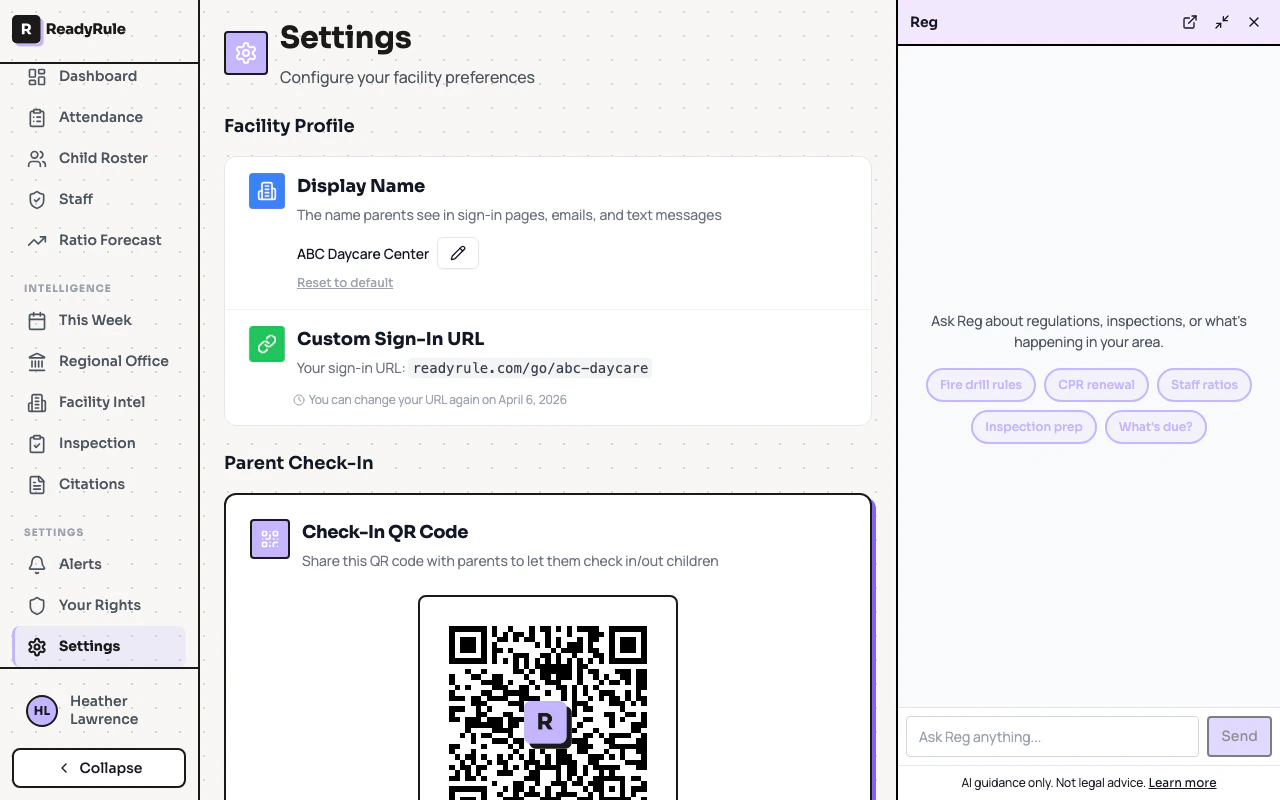
Quick action pills
When you start a new conversation, you will see quick action buttons below the welcome message:- Fire drill rules — Jump to fire safety requirements
- CPR renewal — Check certification expiration dates
- Staff ratios — Get ratio requirements for your facility type
- Inspection prep — Start an inspection preparation checklist
- What’s due? — See upcoming compliance deadlines
Suggested follow-ups
After the AI responds, you may see follow-up question pills at the bottom of the response. Click any to continue the conversation.Action buttons in responses
Some AI responses include action buttons that link to relevant features:- “Log Fire Drill Now” — Takes you to the fire drill logging page
- “View Requirements” — Opens the relevant regulation details
- “Create action plan” — Starts generating an action plan from the response
Sharing and printing responses
When you hover over an AI response, a share icon appears. Click it to:| Option | What it does |
|---|---|
| Copy | Copies the response text to your clipboard |
| Opens your email client with the response pre-filled | |
| Opens a print-friendly view of the response |
Managing conversations
Finding past conversations
Your previous chats are listed in the left sidebar, organized by Today, Yesterday, This Week, and Older. Use the search box to find conversations by keyword.Archiving a conversation
Hover over a conversation in the list, click the menu, then select Archive. Check “Show archived” to see conversations you’ve archived.Troubleshooting
The AI gave me incorrect information
The AI gave me incorrect information
AI can make mistakes. If something seems wrong:
- Ask a follow-up question for clarification
- Cross-reference with your LPA or official Title 22 documentation
- The AI’s knowledge is based on regulations as of its training date
I can't find my previous conversation
I can't find my previous conversation
- Use the search box in the sidebar
- Check “Show archived” in case it was archived
- Conversations are sorted by most recent activity
The response is taking a long time
The response is taking a long time
Large or complex questions may take 10-30 seconds. If it seems stuck, wait up to 30 seconds, refresh the page if needed, or start a new conversation.
Best practices
- Be specific — “What are the ratios for infants in a large family childcare home?” is better than “What are the ratios?”
- Provide context — When asking about citations or POCs, include details about your situation.
- Ask follow-ups — If the first answer is not complete, ask clarifying questions in the same conversation.
- Save responses — Copy and save responses you will need to reference later.
- Verify decisions — Always confirm critical compliance decisions with your LPA.