

Staff clock-in lets your team record when they arrive, leave, and take breaks. You can use QR codes, a front desk kiosk, or both.Documentation Index
Fetch the complete documentation index at: https://readyrule.com/docs/llms.txt
Use this file to discover all available pages before exploring further.
Set up the QR code
Go to Settings
Navigate to Settings from the sidebar (gear icon at the bottom). You will see a “QR Codes” section with two QR codes — one for parents and one for staff.
Find the staff sign-in QR code
Scroll down to the Staff Sign-In section. You will see a QR code and a direct link.
Set up the front desk kiosk
If you have a shared tablet or laptop at your front desk, you can set up a kiosk page where staff pick their name and enter a PIN.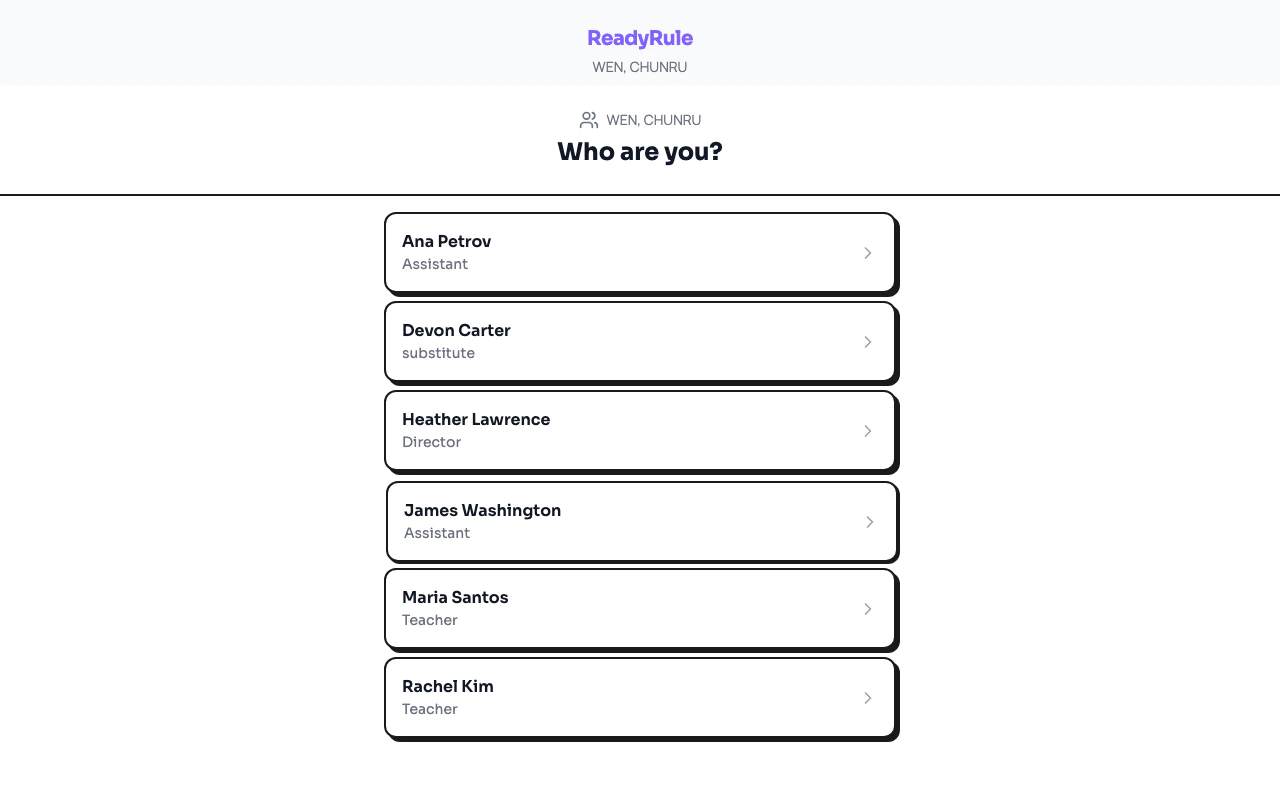
Find the kiosk URL
In the Staff Sign-In QR section, look for the Kiosk / Front Desk Setup box. It shows a URL like:
Bookmark it on your tablet
Open that URL in your tablet’s browser and add it to your home screen or bookmarks. You will see a list of all active staff names. No login is needed on the tablet itself.
Set PINs for each staff member
Staff need a 4-digit PIN to use the kiosk. You set these in staff settings:
- Go to Staff in the sidebar
- Click on a staff member’s name
- Scroll down to the Attendance PIN section
- Click Set PIN
- Enter a 4-digit number and confirm it
- Click Save PIN
Managing PINs
Change a staff member’s PIN
- Go to Staff and click the staff member
- In the Attendance PIN section, click Change PIN
- Enter the new 4-digit PIN and confirm
- Click Save PIN
Remove a PIN
- Go to Staff and click the staff member
- Click Change PIN, then click Remove
How staff use it
QR code (personal phone)
- Staff scans the QR code with their phone camera
- They log into ReadyRule if they are not already logged in
- They see their current status and tap Clock In, Clock Out, Start Break, or Break Over
Kiosk (shared tablet)
- Staff taps their name from the list
- They enter their 4-digit PIN
- They see their status and tap the action they need
- A confirmation appears, then it auto-returns to the name list for the next person
Troubleshooting
A staff member doesn't see their name on the kiosk
A staff member doesn't see their name on the kiosk
They must be marked as active in ReadyRule. Go to Staff and check their status.
The QR code takes staff to a login page
The QR code takes staff to a login page
That is expected. The QR code flow requires each staff member to be logged into ReadyRule on their own phone. If they don’t have an account, invite them first.
Can staff set their own PIN?
Can staff set their own PIN?
Yes. On the QR code page (personal phone), if they are logged in and don’t have a PIN yet, they will see an option to set one themselves.
What if someone enters the wrong PIN too many times?
What if someone enters the wrong PIN too many times?
The system locks them out for 5 minutes after 3 wrong attempts. This prevents guessing. Wait 5 minutes and try again.
Can I see who clocked in today?
Can I see who clocked in today?
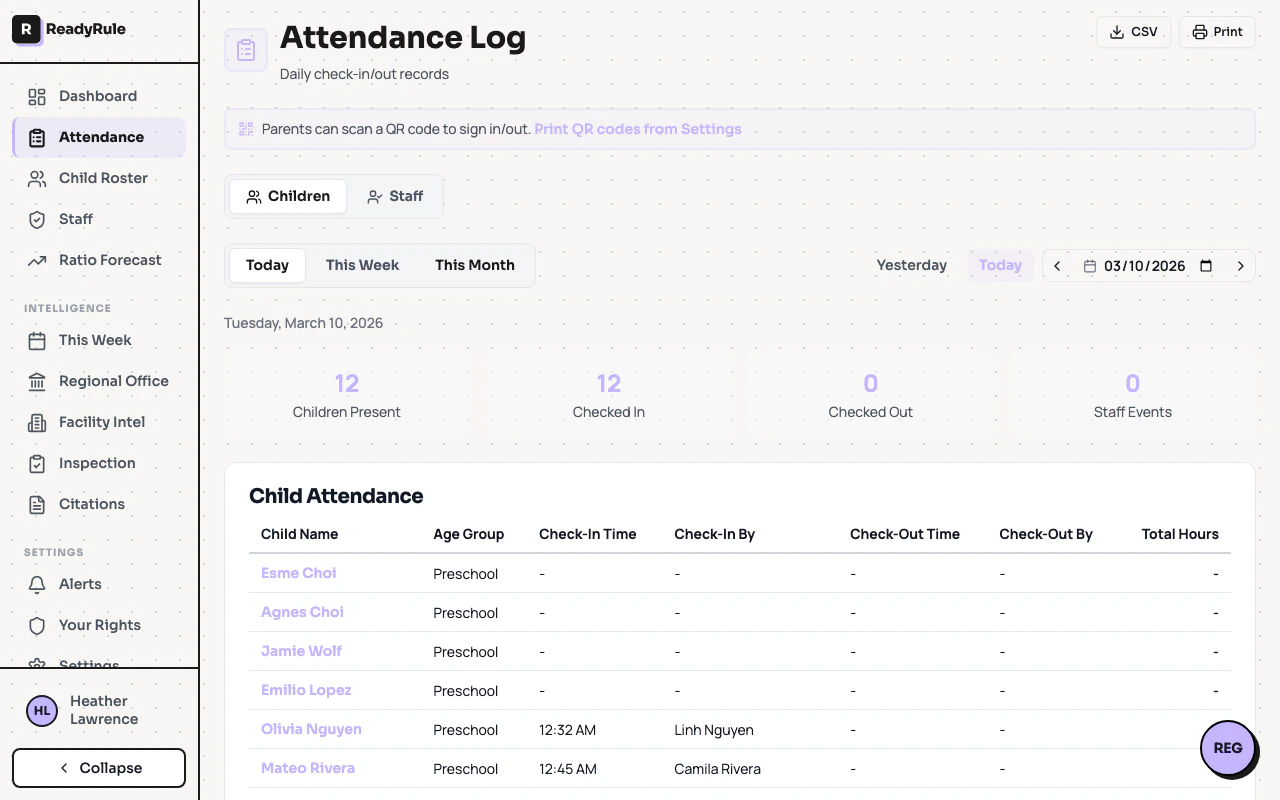
Yes. The attendance records appear in Attendance > daily view. Each event shows the time, action, and method (QR code or manual).
A staff member's name shows up but they can't clock in
A staff member's name shows up but they can't clock in
They don’t have a PIN set yet. Go to their staff profile and set one.
Quick reference
| Task | Where to go | Time |
|---|---|---|
| Print QR code | Settings > QR Codes > Staff Sign-In > Print for Wall | 1 min |
| Set up kiosk | Settings > QR Codes > Staff Sign-In > Kiosk URL | 2 min |
| Set a staff PIN | Staff > [Name] > Attendance PIN > Set PIN | 1 min |
| Change a PIN | Staff > [Name] > Attendance PIN > Change PIN | 1 min |
| Remove a PIN | Staff > [Name] > Change PIN > Remove | 1 min |